




 14
14
Entering a Court Ordered Garnishment
SOP Number: YES00028
Effective Date: 4/10/2025
Revision Date: 4/10/2025
Owner: Payroll
Review Frequency: {Quarterly}

Purpose
This document explains the process and steps for when we receive a court ordered garnishment from a creditor agency. This document explains the steps to implement and process the garnishment in compliance with regulations or how to respond to the garnishment in cases where it cannot be implemented.

Responsibilities
Responsibility of the payroll staff


COURT ORDERED GARNISHMENTS
-
Receive and sign for Court Ordered Garnishment when served.
-
Garnishments take priority after payroll, make sure it is entered ASAP.
ENTERING DEDUCTION IN CLASSIC:
-
Using the information provided, find the employee file in Classic.
-
Front Office> Employee>Deduction> Set Up
-
Create a “New Deduction”
-
If an employee has other active garnishments, please see Step 2 under MULTIPLE GARNISHMENTS ACTIVE
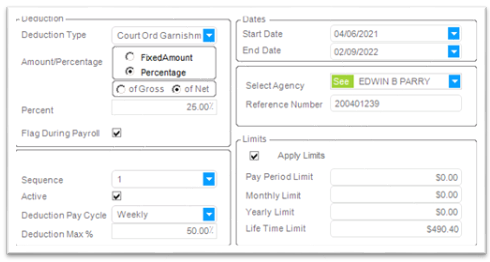
The Deduction should look like this:
-
Deduction Type: Court Ord Garnishment (1,2,3, etc. depending on how many they have had in the past)
-
Amount/Percentage: Default to Percentage of Net at 25%. Most of the court ordered garnishments we receive will require 25% to be deducted.
-
Flag During Payroll: Yes
-
Sequence: 1 (or higher depending on how many garnishments they have or had in the past) Note any ACTIVE IWO-CHILD SUPPORTS take priority over all deductions.
-
Active: Yes
-
Deduction Pay Cycle: Weekly
-
Deduction Max %: 50% WE ARE LEGALLY NOT ALLOWED TO TAKE MORE THAN 50%
-
Start Date: When the garnishment was received or activated
-
End Date: When the garnishment expires (most common is 1 year from issue date)
-
Select Agency: The issuing agency listed on the top left of the garnishment *IF issuing agency is not listed send agency name and address to Payroll Manager or Controller to be added.
-
Reference Number: The case or claim number listed on the garnishment.
-
Apply Limits: YES
-
Pay Period Limit:
-
Monthly Limit:
-
Yearly Limit:
-
Lifetime Limit: The total amount owed on the garnishment.
-
Go to the Notes tab on the right side of the page. Enter the following:
-
Effective time: How long is the garnishment in effect
-
Garnishment entered: Today’s date
-
Check received: Was a $25 Check included YES or NO
-
Employee active: YES or NO
-
Letter Sent: YES, with date mailed OR NA
-
Save Deduction.
ENTERING THE DEDUCTION IN SPREADSHEET
-
Input Garnishment information into spreadsheet Current GARNISHMENTS.xlsx (make sure it is entered in correct sheet)
-
If employee is active and a $25 check was received give to Accounts Receivable and see section: ACTIVE EMPLOYEE
-
If employee is not currently active see section: INACTIVE EMPLOYEE
-
If employee is active but has another active garnishment in place see section: MULTIPLE GARNISHMENTS ACTIVE
INACTIVE EMPLOYEE
-
If not currently working complete the Garnishment No Longer Working Response.docx
-
Print 2 copies! First copy on company letterhead to mail to the Plaintiff, second for YES Records. (Attach to original Garnishment.)
-
Save a PDF Copy of original garnishment in SharePoint. Documents > HR > PAYROLL > Garnishments > Court Ordered Garnishments
-
Save PDF Copy of Letter in SharePoint
Documents > HR > PAYROLL > Garnishments > Letters
-
Save physical garnishment and letter together in Payroll Drawer.
MULTIPLE GARNISHMENTS ACTIVE
-
Complete and print letter: Garnishment Currently Has A Garnishment.docx
Use company Letterhead and print a copy for YES Records.
-
If not already done return to Deduction tab in Classic and adjust start/end dates of garnishments based on instructions listed on Writs
-
ONLY one garnishment may be in effect at one time
-
Garnishments are satisfied in the order they are received, however an ORS or DWS garnishment takes precedence over other and MUST BE satisfied first.
ACTIVE EMPLOYEE
-
On the front of the packet place a sticky note with the Employee Name, last 4, name of the client, pay day & pay period.
-
Prepare all necessary documents. Prefill any repetitive info, such as phone number, email address & physical addresses.
-
Save a PDF Copy of original garnishment in SharePoint.
Documents > HR > PAYROLL > Garnishments > Court Ordered Garnishments
-
In Employee’s BOLD file save PDF Double sided copy of:
-
Mail page.docx with the employee’s mailing address
-
Administrative Garnishment Order
-
Completed Answers to Interrogatories (Initial if provided)
-
Notice of Garnishment and Exemptions
-
2 copies of Reply and Request of Hearing form
This is only for the first week of completed Answers to Interrogatories
-
In SharePoint > Documents > HR > PAYROLL > Garnishments > Template Answers to Interrogatories
-
save PDF double sided copy of:
-
Mail page.docx with the employee’s mailing address
Prefilled Answers to Interrogatories (Subsequent if provided)
Now instead of completing the garnishment by hand every week you can complete in Adobe and only print what you need to mail out
PROCESSING THE DEDUCTION
-
After processing payroll for the employee, pull up their check information in either the payroll tree from their payment batch, or from the employee file after processing but BEFORE Posting.
-
Open the Current GARNISHMENTS.xlsx spreadsheet
-
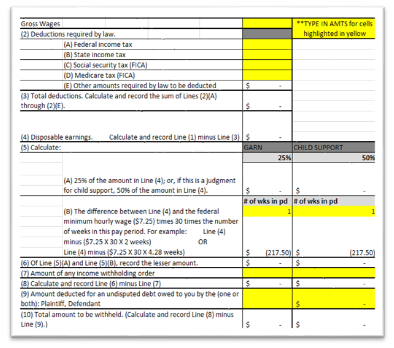
Enter the employees check information into the calculator on the side, input amounts for all cells in yellow.
-
IF THE EMPLOYEE HAS ANY OTHER DEDUCTIONS (Child Support, Health Insurance, etc.) input the amount for the deduction into LINE 9 on the calculator to ensure that we account for that.
-
This will likely change the amount that should be deducted, and we will need to update the deduction.
-
In the employee’s sub tree, payroll -> Deduction. Find the Court Ordered Garnishment deduction.
-
Under APPLY LIMITS > Pay Period Limit, enter the Total Amount to be withheld based on the spreadsheet calculation.
-
Process the payroll again in the payroll batch to ensure the deduction gets updated.
-
Ensure that the total in LINE 10 matches the amount deducted from an employee’s check in payroll. If the amounts match the deduction is complete and the interrogatories are ready to be filled out.
WEEKLY PROCESS FOR FILLING OUT INTERROGATORIES:
-
If the packet contains Answers for the Initial Pay Period and Subsequent Pay Periods. Complete the Initial Pay for the 1st week and use the Subsequent Pay Period packet onward.
-
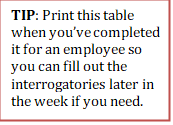
Fill out the answer forms and use the Garnishment Table to help with the calculations of how much to deduct from the employee.
-
Once the Answers are filled out completely print the following copies:
-
Attorney – This copy goes to payroll manager who will mail out with check
-
Answers to Interrogatories
-
Defendant (Initial deduction only)
-
Writ
-
Answers
-
Notice
-
Two copies of the Reply and Request
-
Defendant (Subsequent deductions)
-
Answers
-
Mail page
-
Scan a copy of the completed Garnishee’s Answers to Interrogatories Notice to employee file. (Move Step 4 from Active Garnishments?)
Approval and Revision History
|
Version |
Date |
Approved By |
Changes Made |
|
1.0 |
4/24/2025 |
IT , ML |
Initial Creation |

Contact Information
For questions or support related to this SOP, contact:
Role/Department: HR
Email: [email protected]
Extension: 803

