




 36
36
Payroll Returns and Reversals
SOP Number: YES00049
Effective Date: 4/10/2025
Revision Date: 4/10/2025
Owner: Payroll
Review Frequency: {Quarterly}

Purpose
Briefly describe the purpose of this SOP. Explain why this procedure exists and what it aims to achieve.
Some SOPs will have this, some won’t. Will be listed as “Purpose” on old SOPs too.

Responsibilities
List the roles and their responsibilities for this procedure. Be specific about who is responsible for each part of the process.
Ex.
-
Role 1: Recruiter
-
Role 2: Account Manager

Definitions
Provide definitions for any terms or acronyms used in this SOP that may not be commonly understood.

SOP: Payroll Returns and Reversals
-
Returns
-
Checking for Returns
-
Access the KEY ACH Customer Activity Report
-
Navigate to Reporting and Research > Information Reporting
-
Locate Section III (Items Returned)

1.2 Processing Returns
1. For each returned item:
a. Find employee in Avionte BOLD
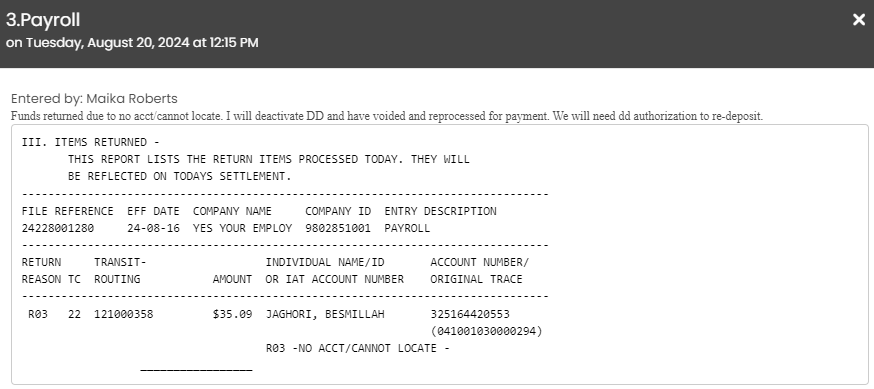
b. Copy return information from KEY report and add as an activity in Avionte BOLD with the activity code “Payroll”.
-
Include the following information:
-
Funds have been returned from the bank
-
Direct Deposit will be deactivated
-
Account documentation needed to resubmit funds
-
Funds will be voided and reprocessed for payment
-
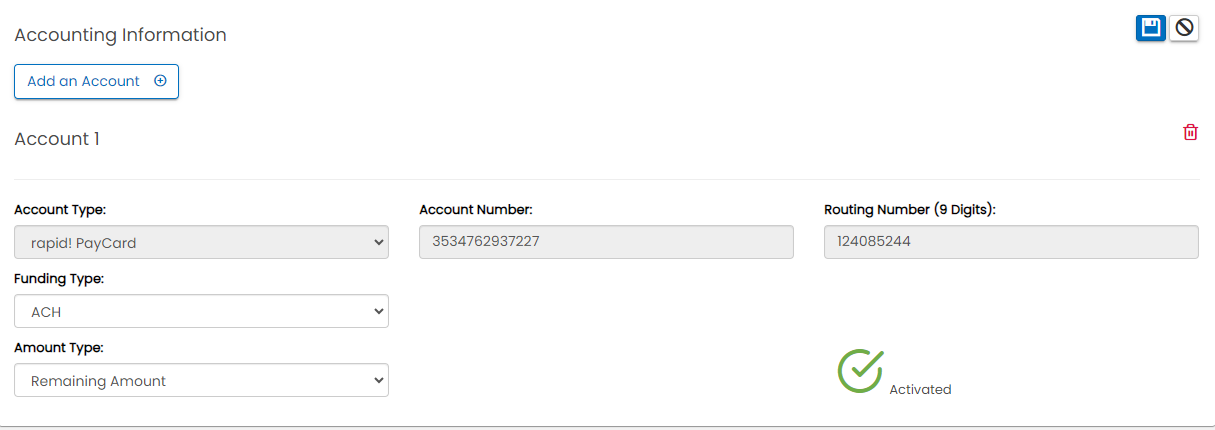
Deactivate direct deposit
-
Navigate to the Tax tab > accounting information
-
Delete direct deposit information
-
Save changes
-
Process void in Avionte Classic
-
Find employee in Avionte Classic
-
Visit History tab > Pay History
-
Locate the returned transaction
-
Click the binocular icon next to the transaction
-
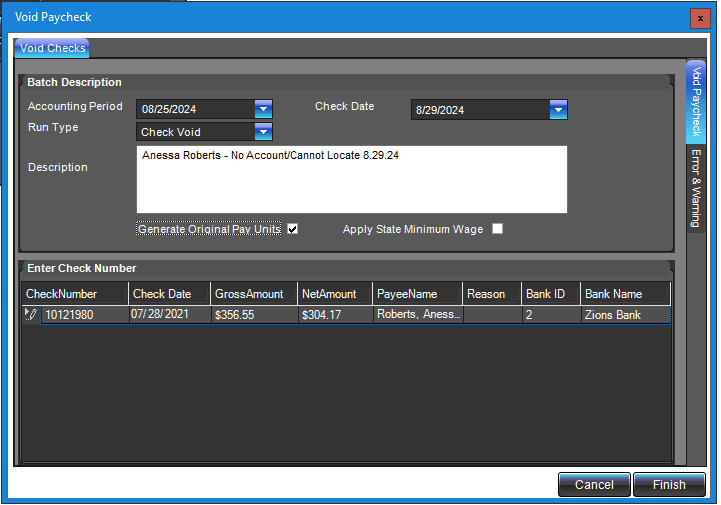
Select “Void Paycheck”
-
Enter Description:
-
Include employee name
-
Bank error associated with the return
-
Date of return
-
SELECT “GENERATE ORIGINAL PAY UNITS”
-
Click “Finish”
-
Verify void in Time Entry
-
Navigate to the Time Entry tab in Back Office
-
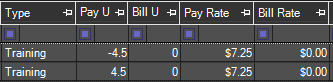
Select the auto-populated paycheck correction batch in the top left corner
-
Refresh under Actions in the top right corner
-
Search for the specific employee
-
Verify void is correct (THERE SHOULD BE NO BILL)
-
Verify the batch
-
You will receive 5 errors:
-
4 related to having no bill
-
1 for employee not having direct deposit
-
Approve all errors
-
Close the batch
-
Notify the appropriate office
-
Inform them that employee’s funds have been returned
-
Request account documentation for redeposit
-
Update Payroll Weekly Tracker
-
Under “Late HRS & Errors” section:
-
Add employee’s name
-
Include pertinent return information
-
Error Type: “ACH Auto Reversal”
-
Reason: As listed on ACH Report

-
Reversals
-
Reversal Criteria
-
Severe overpayments by YES
-
Instances where funds will not auto-return
-
Must be discussed with the entire Payroll Team
-
Request must be submitted within 5 business days before 1PM after initial deposit
-
Reversal Process
-
Fill out ACH-Origination-Maintenance-Request form (Located in Sharepoint)
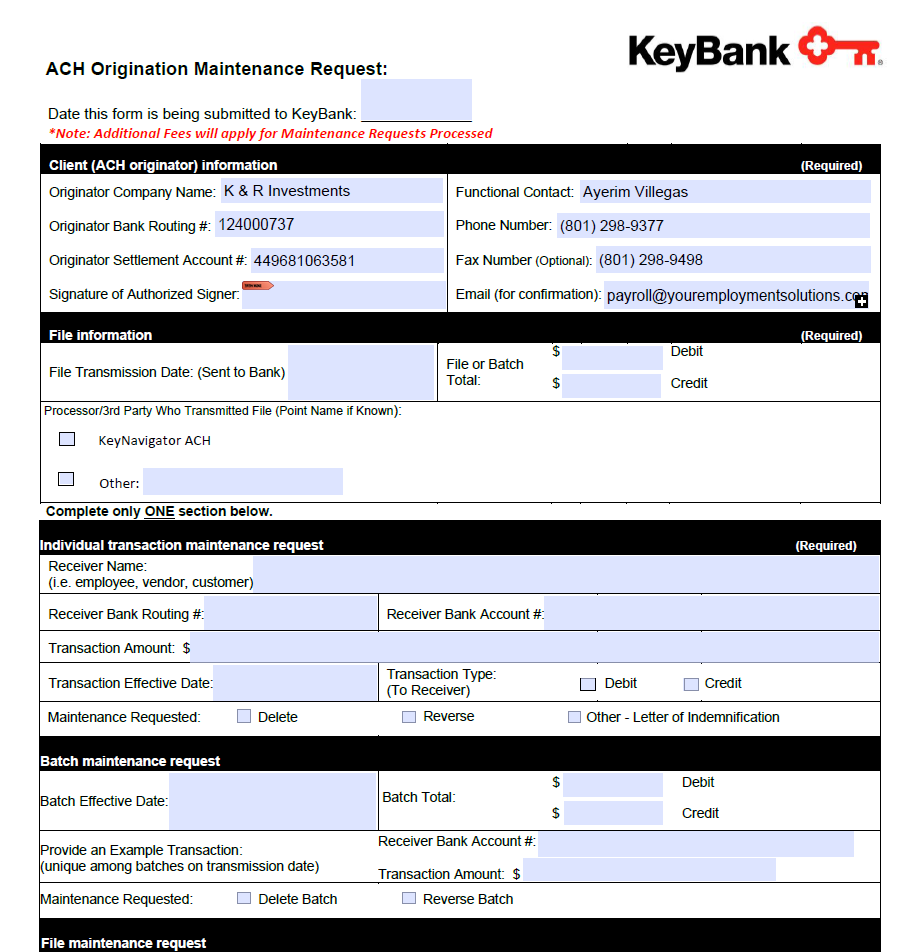
2. Complete form details
-
Enter current date at the top
-
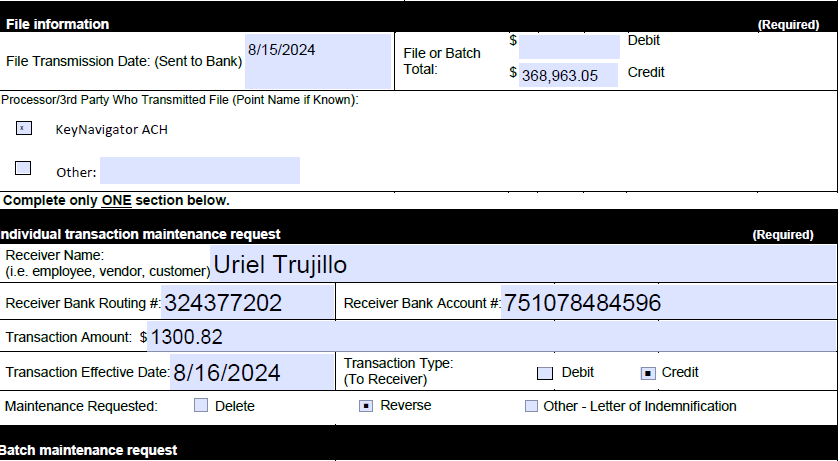
Fill out File Information box:
-
Date file sent to the bank (DD submission date)
-
Total deposit amount (found in Payroll Approvals chat, Microsoft Teams)
-
Enter amount under “Credit”
-
Complete Individual Transaction Maintenance Request section:
-
Enter specific funds information
-
Select “Credit” as transaction type
-
Select “Reverse” as maintenance requested
-
Sign in the Client (ACH originator) information section
-
Save document
3. Submit reversal request:
-
Email document to [email protected]
-
Notify employee/requesting office
-
Inform them that reversals can take up to a week
-
Update employee records
-
Leave a detailed activity note in Avionte BOLD file
-
Deactivate direct deposit (follow steps in Returns section 1.2, step 2)
-
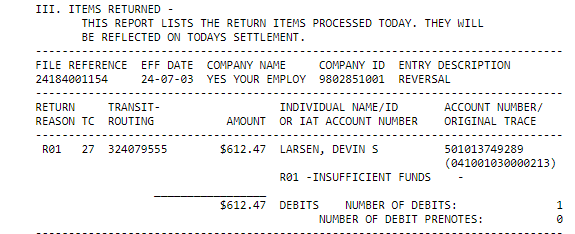
Monitor daily ACH Report (Section III Funds Returned)
-
Monitor only section III
-
If the return says, “Insufficient Funds”, the return was unsuccessful.
-
There will be a provisional credit shown in section I of the report after 1-3 business days. This does not guarantee a successful reversal.
-
Process reversal outcome
-
If unsuccessful (insufficient funds):
-
Copy and paste report section into employee’s activities in Avionte Bold
-
Notify employee/office of unsuccessful reversal
-
If successful:
-
Copy and paste ACH Report transaction into employee’s activities in Avionte BOLD
-
Proceed with void process (follow steps in Returns section 1.2, steps 3-5)
-
Request account documentation for new submittal of funds if necessary
Guidelines and Best Practices {OPTIONAL}
Offer any additional guidelines, tips, or best practices to help with successful execution of this SOP.
Approval and Revision History
|
Version |
Date |
Approved By |
Changes Made |
|
1.0 |
4/10/2025 |
IT , ML |
Initial Creation |

Contact Information
For questions or support related to this SOP, contact:
Role/Department: Payroll
Email: [email protected]
Extension: 803

