




 32
32
Activate Timesheets for Jobs or Companies in Avionte
SOP Number: YES0003
Effective Date: 4/24/2025
Revision Date: 4/24/2025
Owner: IT
Review Frequency: [Quarterly]
Purpose
Briefly describe the purpose of this SOP. Explain why this procedure exists and what it aims to achieve.
Some SOPs will have this, some won’t. Will be listed as “Purpose” on old SOPs too.
Responsibilities
List the roles and their responsibilities for this procedure. Be specific about who is responsible for each part of the process.
Ex.
-
Role 1: Recruiter
-
Role 2: Account Manager

Definitions
Provide definitions for any terms or acronyms used in this SOP that may not be commonly understood.
Procedure Steps
Setup and Activate Timesheets for Jobs or Companies
Activate on a Company
You can determine what companies you would like to default to utilize Timesheets. When this is selected on a Company all newly created jobs moving forward will be set up for Timesheets.
-
Go to the Company that you want to setup the Batch hours for.
-
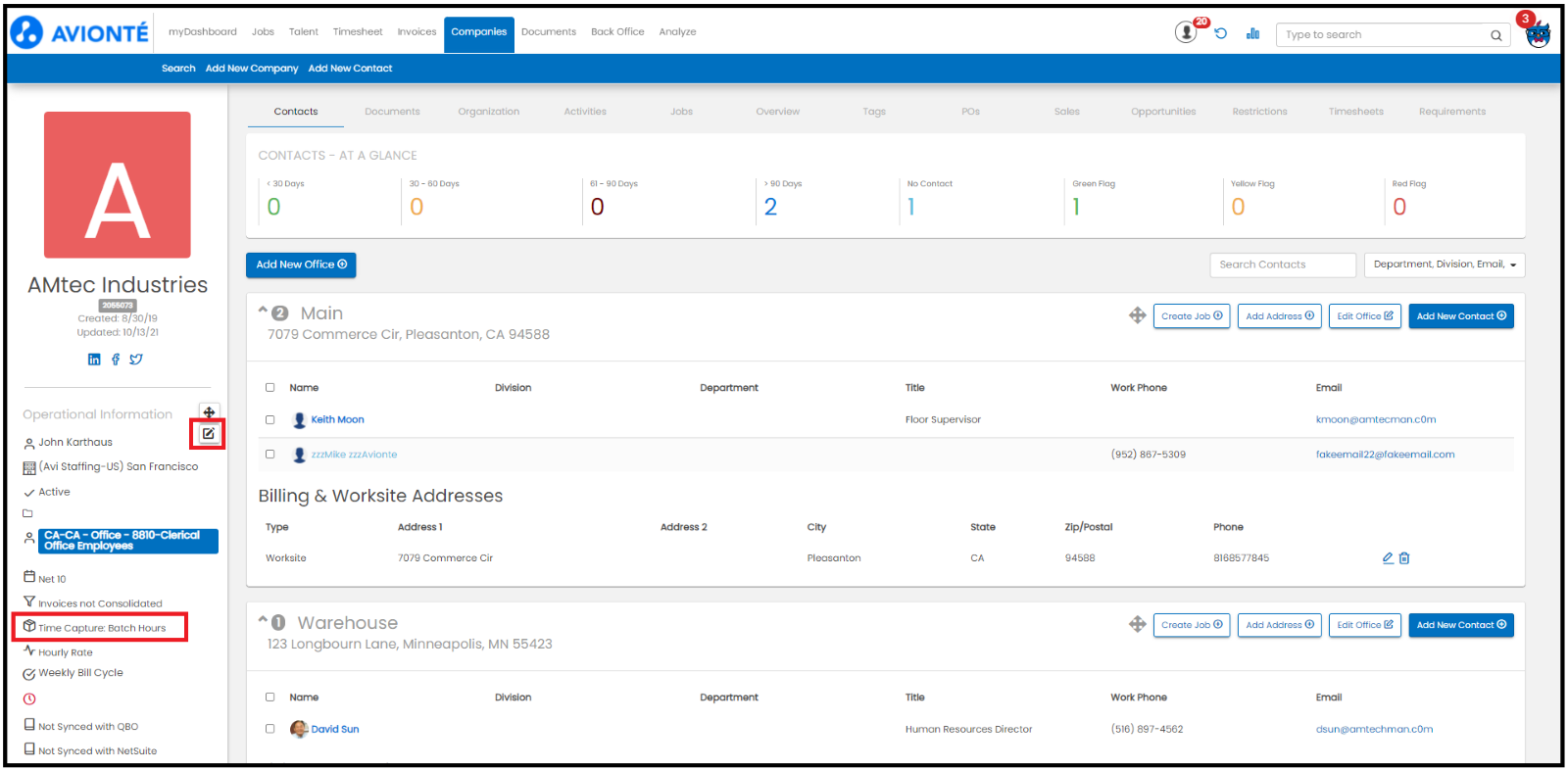 Click on the Edit icon for the Operational Information widget.
-
Select the Timesheet from the Time Capture Method field.
-
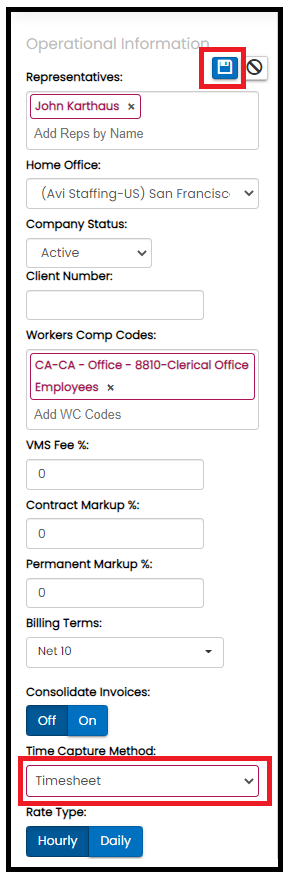 Click on the Save icon
Activate on a Job
-
Go to the Job that you want to setup the Timesheet for.
-
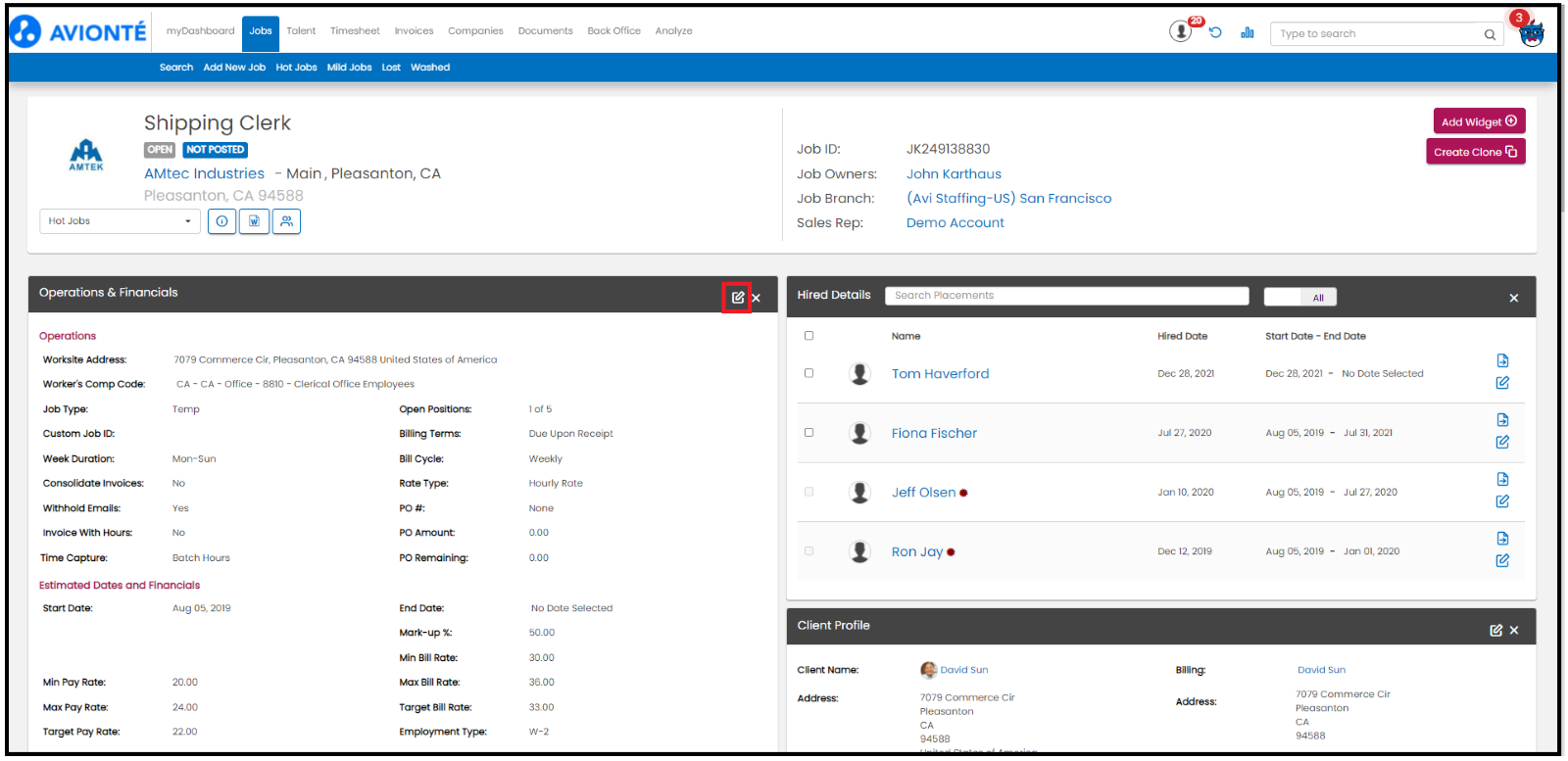 Click on the Edit icon for the Operations & Financials widget
-
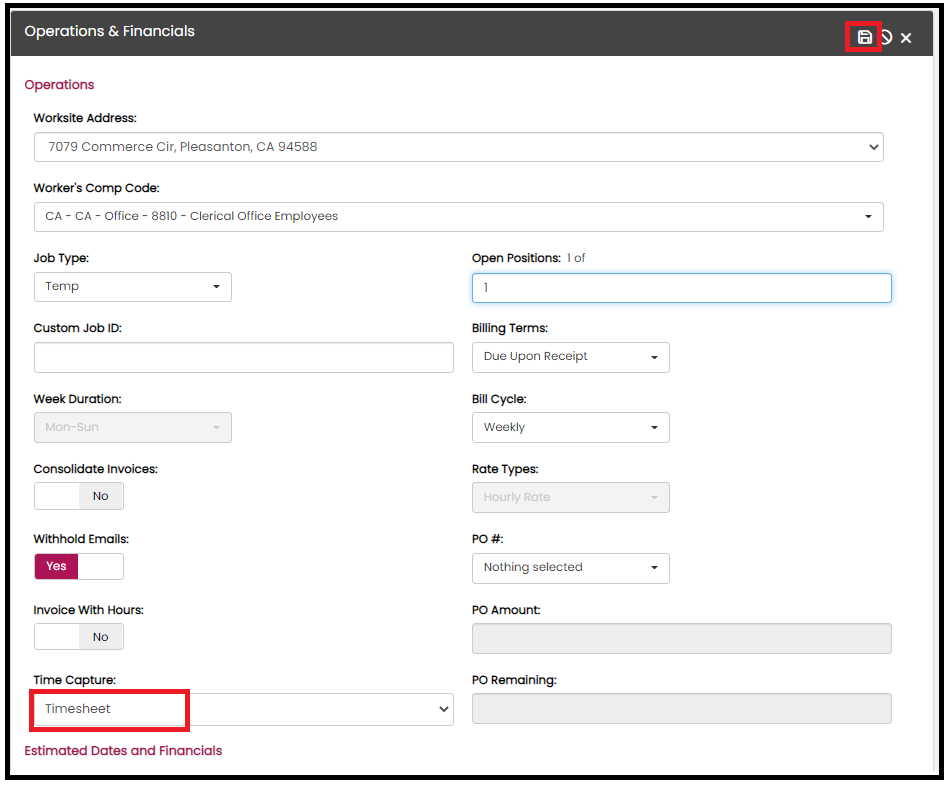
Select the Timesheet from the Time Capture Method field.
-
Click on the Save icon
Guidelines and Best Practices {OPTIONAL}
Offer any additional guidelines, tips, or best practices to help with successful execution of this SOP.
Approval and Revision History
|
Version |
Date |
Approved By |
Changes Made |
|
1.0 |
4/24/2025 |
IT , ML |
Initial Creation |
Contact Information
For questions or support related to this SOP, contact:
Role/Department: IT
Email: [email protected]
Extension: 111

