




 18
18
Compass Payroll
SOP Number: YES00015
Effective Date: 12/31/2024
Revision Date: 12/31/2024
Owner: Operations
Review Frequency: [Quarterly]
Responsibilities
List the roles and their responsibilities for this procedure. Be specific about who is responsible for each part of the process.
-
Role 1: Recruiter
-
Role 2: Account Manager
Definitions
Provide definitions for any terms or acronyms used in this SOP that may not be commonly understood.
Procedure Steps
Timecards:
-
Compass will send timecards via email. Typically, Monday or Tuesday.
-
How to read a Timecard:
-
 Daily shift hours are shown at the top of the timecard.
-
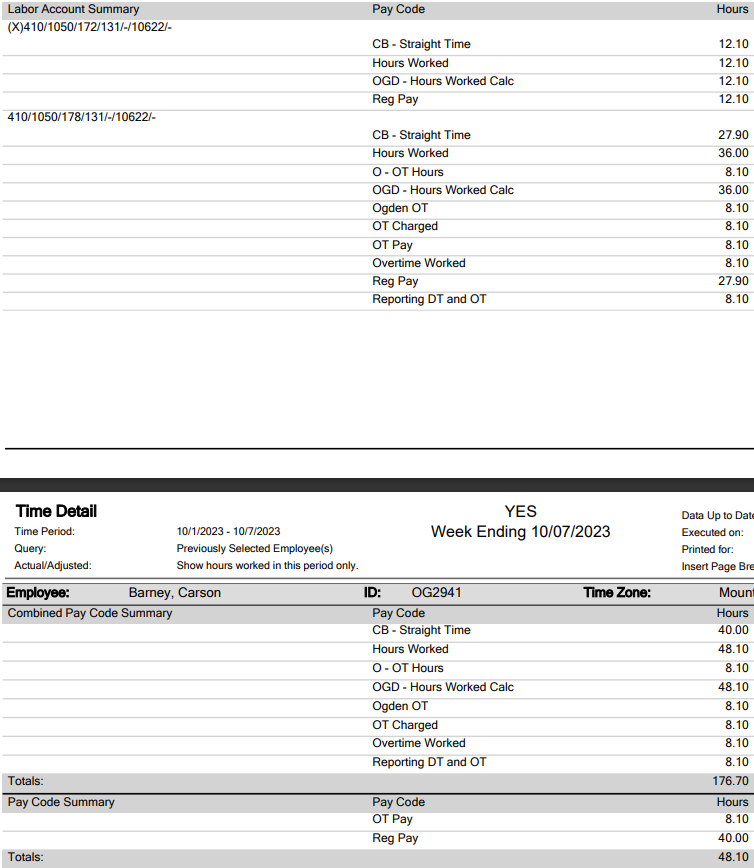 Below the shift hours are the total hours the employee worked and which cost codes they worked in. Compass needs these separated on the spreadsheet for invoicing.
-
In the above example, you can see the employee worked in cost code 410/7510/138 and 410/1050/264 under the Labor Account Summary. When reading the cost code, we do not care about any numbers beyond the first 10 numbers.
-
You can also see that all the overtime hours this employee worked were under the cost code 410/1050/178. This number is found in the row that says Overtime Worked. For payroll, we designate this by highlighting it on the spreadsheet. See below:

Spreadsheet:
-
The spreadsheet used to calculate payroll is located in YesShared under the destination, Documents>Operations>Company Orientations>C>Compass Minerals>Compass Tracker.
-
Once opened select the Payroll tab at the bottom. Delete any hours from the previous week from column D,E,F, H, and J.
-
Using the hours from the timecards, begin to input the hours into the spreadsheet. The names are in alphabetical order.
-
Using Carson Barney as an example, you can see from the timecard in the last section, he has 48.1 total hours, with 12.1 in the cost center 410/1050/172 and 36 in the cost center 410/1050/178. Start by putting in his regular hours in column D; in his case it would be 40 (This column will never be more than 40). Then enter his OT hours, which is 8.1. Because all his hours are a PM shift, they are all added to column F for Diff Total, which is 48.1.
-
If an employee only worked one cost center that week, only column G and H will need to be filled out. If they worked two cost centers, I and J will need to be filled out as well.
-
When putting in hours for more than one cost center for an employee with overtime, highlight the cost center with the OT hours as yellow so payroll can invoice correctly.
-
When done correctly, his time on the spreadsheet would look like this:

-
Repeat this step for all employees.
Sending to Payroll:
-
Once all hours are entered. Highlight columns A-P and Copy them to a blank spreadsheet. Save this new spreadsheet and title it Compass Payroll 1.31 (month.date).
-
Once saved, close it.
-
Open a new email to payroll.
-
Attach the PDF of the timecards that Compass emailed to you and the Excel spreadsheet you just saved, titled Compass Payroll 1.31.
-
Payroll will notify you of anything they may need updated.
Things to know:
-
Regarding pay, if an employee’s main (first) assignment in Bold is $25 per hour, then they would still make $25 even if they worked in a Haul department cost code that would typically pay $23.
-
Training hours are paid at their full wage. There is no special order in Bold for training hours. It is billed under their main department.
-
 If a cost code has an X before it like this, it means nothing to YES. Disregard it.
-
If payroll says they need an employee assigned to an additional cost code department, nominate the employee, search compass minerals, and add them to the cost code they highlighted in their email. No notes need to be made, but the start date will need to be at least 1 week before the day you’re assigning them.
-
For a headcount of 70 this entire process takes roughly 30 minutes with no interruptions for someone that is comfortable with it. For someone new, expect an hour’s worth of time. It needs to be submitted before Wednesday afternoon.
Guidelines and Best Practices {OPTIONAL}
Offer any additional guidelines, tips, or best practices to help with successful execution of this SOP.
Approval and Revision History
|
Version |
Date |
Approved By |
Changes Made |
|
1.0 |
12/31/2024 |
IT , ML |
Initial Creation |
Contact Information
For questions or support related to this SOP, contact:
Role/Department: Operations
Email: [email protected]
Extension: 703

