




 52
52
How to run an E-Verify
SOP Number: YES00038
Effective Date: 11/27/2024
Revision Date: 11/27/2024
Owner: Operations
Review Frequency: Quarterly
Responsibilities
List the roles and their responsibilities for this procedure. Be specific about who is responsible for each part of the process.
-
Role 1: Recruiter
-
Role 2: Account Manager

Definitions
Provide definitions for any terms or acronyms used in this SOP that may not be commonly understood.

Procedure Steps
HOW TO CREATE A CASE:
-
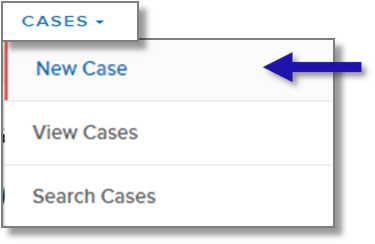
From the E-Verify Welcome page, click the drop-down arrow next to Cases and select New Case.
-
Enter the employee’s information from Section 1 of Form I-9.
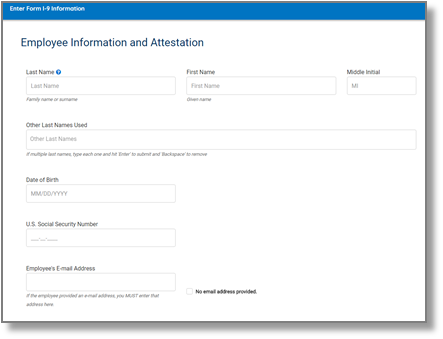
Click Continue.
-
From Section 1 of the employee’s Form I-9, choose the appropriate option for Citizenship Status.
-
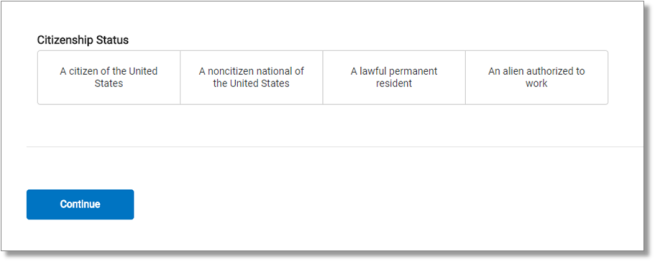 A citizen of the United States
-
A noncitizen national of the United States
-
A lawful permanent resident
-
An alien authorized to work
Click Continue.
-
Click List A Document or List B & C Document, using information provided in Section 2 of the employee’s Form I-9. Then select the document or combination of documents provided in Section.
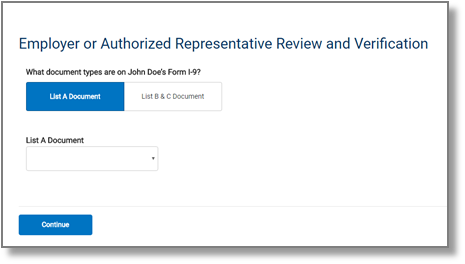
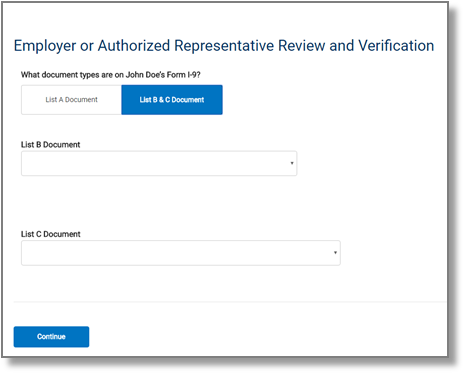
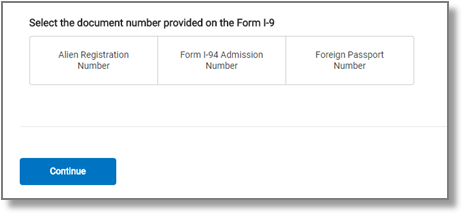
The documents listed, must match with what is written on the employees I-9.
-
Type the employee’s first day of employment recorded in Section 2 of Form I-9 into the Employee’s First Day of Employment field. Alternatively, you may click Today, 1 Day Ago, or 2 Days Ago and the corresponding date automatically populates in the Employee’s First Day of Employment field. If you select Other, the system requires you to manually enter the employee’s first day of employment.
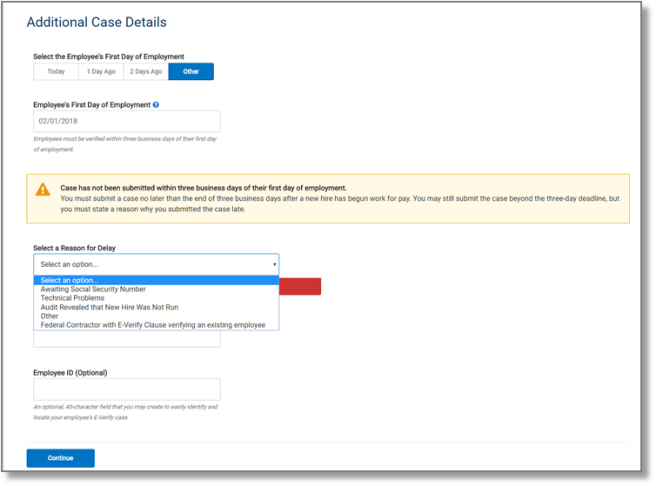
If the case is being created 3 or more days past the employee's first day of employment, you must provide a reason for the delay. Select one of the following reasons from the drop-down menu:
-
Awaiting Social Security Number
-
Technical Problems
-
Audit Revealed that New Hire Was Not Run
-
Other
-
Federal Contractor with E-Verify Clause verifying an existing employee
If Other is selected, E-Verify requires you to type the reason in the Reason for Delay text box.
Click Continue.
REVIEW CASE - PROCESS OVERVIEW
-
Review information entered into E-Verify and confirm it matches information entered on the employee’s Form I-9.
-
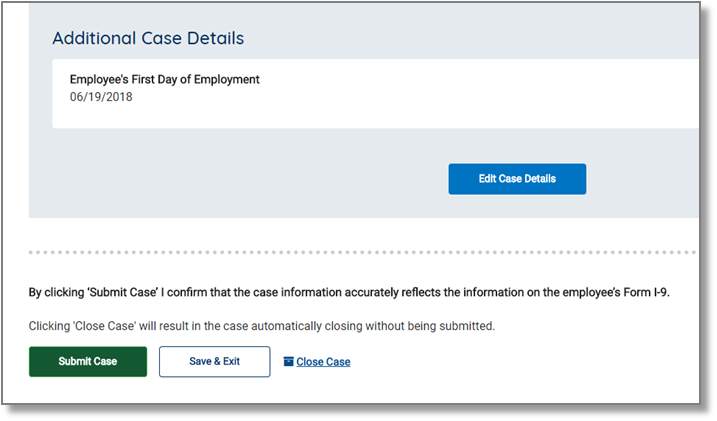
Click Edit Case Details to make corrections if necessary, then click Continue to return to the Review Case screen.
-
Click Submit Case.
IMPORTANT: If you need more time to verify the information is correct, you may click Save & Exit to exit the case. You can locate the case later under View/Search Cases. If you determine you no longer need to submit the case, you may click the Close Case link and the case will be closed without being submitted.

-
If information entered does not immediately match records available to SSA and/or DHS, E-Verify will prompt you with a second alert asking you to confirm the information is correct.
-
Review information on the screen to ensure it matches what the employee entered in Section 1 of Form I-9. Select the appropriate option, indicating whether the information displayed matches the Form I-9. If the information does not match what was entered on Form I-9, correct the field in the alert to match the Form I-9.
-
E-Verify may also ask you to do a photo verification and verify that the photo in their system matches the person sitting in front of you.
-
Click Continue to Case Results.
CASE RESULTS - OVERVIEW
|
The employee’s information matched records available to SSA and/or DHS. |
|
|
This case was referred to DHS for further verification. |
|
|
Information did not match records available to SSA and/or DHS. Additional action is required. |
|
|
The employee has visited an SSA field office or contacted DHS, but more time is needed to determine a final case result. |
|
|
SSA or DHS requires that you close the case and create a new case for this employee. This result may be issued when the employee’s U.S. passport, passport card, or driver’s license information is incorrect. |
|
|
E-Verify cannot confirm the employee’s employment eligibility after the employee visited SSA or contacted DHS. |
EMPLOYMENT AUTHORIZED: The employee is good to start their assignment! Enter the E-Verify details in the employee’s TAX tab in Avionte BOLD, under Personal Information. Both the E-Verify Case Number AND the date ran, must be entered for the employee to be added to an order.


TENTATIVE NONCONFIRMATION (TNC)
A TNC means that the information entered into E-Verify does not match records available to SSA and/or DHS. It is possible for an employee to receive a dual TNC, which means the case received a TNC result from both agencies at the same time because information entered into E-Verify does not match records available to both SSA and DHS. E Verify identifies the agency or agencies associated with the mismatch in the TNC Further Action Notice.
IMPORTANT: Employers may not terminate, suspend, delay training, withhold or lower pay, or take any other adverse action against an employee because the employee received a TNC, until the TNC becomes a Final Nonconfirmation.
If the employee chooses not to take action on the TNC, the employer may terminate employment with no civil or criminal liability as noted in “Responsibilities of the Employer,” Article II, Section A paragraph 13 of the MOU. The case can be treated as a Final Nonconfirmation and the employer should close the case in E Verify
The following sections outline the specific steps required when a TNC case result is received.
NOTIFY EMPLOYEE OF TNC
-
Download and print the Further Action Notice
-
To print in English, click Download Further Action Notice.
-
To print in Spanish, click the down arrow next to English and select Spanish, then click Download Further Action Notice.
-
Review the Further Action Notice with the employee in private and instruct the employee to confirm whether the information listed at the top is correct.
-
If you determine that you entered information incorrectly, select the statement indicating the information was not correct, then click Close Case. The case will be closed due to incorrect data.
-
Instruct the employee to indicate whether he or she will take action to resolve the TNC, then have the employee sign and date the Further Action Notice printed in English.
-
Provide the employee a copy of the signed Further Action Notice in English (and a translated version, if appropriate).
-
Attach the original signed Further Action Notice to the employee’s Form I-9.
CONFIRM EMPLOYEE DECISION AND REFER CASE – PROCESS OVERVIEW
-
Select the option indicating whether or not the employee will take action to resolve the TNC.
-
Click Continue.
NOTE: If you indicate that the employee will take action to resolve the TNC, the employee’s has 8 federal government working days from when you click Continue to visit SSA and/or call DHS.
EMPLOYEE WILL TAKE ACTION TO RESOLVE TNC:
-
Download and print the Referral Date Confirmation, attach a copy to the employee’s Form I-9, and provide the original to the employee.
-
The Referral Date Confirmation downloads in English by default, but may also be downloaded in Spanish.
-
To download/print in English, click Download Referral Date Confirmation.
-
To download/print in Spanish, click the down-arrow next to English and select Spanish, then click Download Referral Date Confirmation.
-
Click Continue.
NOTE: If the employee cannot read, you must read the Referral Date Confirmation to the employee. Provide employees who do not speak English as their primary language or have a limited ability to read or understand the English language, with a translated version of this confirmation in the appropriate language. Additional languages are available, in Other Resources under Resources/View Essential Resources in E-Verify.
IMPORTANT: If you determine information in the case is incorrect and the case should be closed, select the option indicating the employee will not take action. The case will receive a Final Nonconfirmation result and you will be prompted to close the case. Once you click Close Case, you may select an option indicating you are closing the case because information was entered incorrectly. Close the case only after E-Verify provides a final case result or if you no longer need to continue to confirm the employment eligibility of the employee.
IF EMPLOYEE WILL NOT TAKE ACTION TO RESOLVE THE TNC:
-
Confirm that you selected the correct option.
-
Click Continue to close the case.
-
Click Cancel to return to the previous screen.
NOTE: If you click Continue to close the case, E-Verify displays an updated case status of Final Nonconfirmation.
-
Click Close Case.
SSA and/or DHS have 10 federal government working days from the date the case was referred to update the case result in E Verify. Check E-Verify periodically for an update in the case result

Guidelines and Best Practices {OPTIONAL}
Offer any additional guidelines, tips, or best practices to help with successful execution of this SOP.

Approval and Revision History
|
Version |
Date |
Approved By |
Changes Made |
|
1.0 |
11/27/2024 |
IT , ML |
Initial Creation |

Contact Information
For questions or support related to this SOP, contact:
Role/Department: Operations
Email: [email protected]
Extension: 703

