




 11
11
Headcount Check at Fresenius
Fresenius Shifts and Wages
SOP Number: YES00035
Effective Date: 12/31/2024
Revision Date: 12/31/2024
Owner: Operations
Review Frequency: [Quarterly]

Purpose
Briefly describe the purpose of this SOP. Explain why this procedure exists and what it aims to achieve.
Some SOPs will have this, some won’t. Will be listed as “Purpose” on old SOPs too.

Responsibilities
List the roles and their responsibilities for this procedure. Be specific about who is responsible for each part of the process.
Ex.
-
Role 1: Recruiter
-
Role 2: Account Manager

Definitions
Provide definitions for any terms or acronyms used in this SOP that may not be commonly understood.


Headcount check at Fresenius
-
Go to www.compliancewire.com and login. Company Code: FMCNADPD
-
 Click on your initials in the top right hand corner of the page.
-
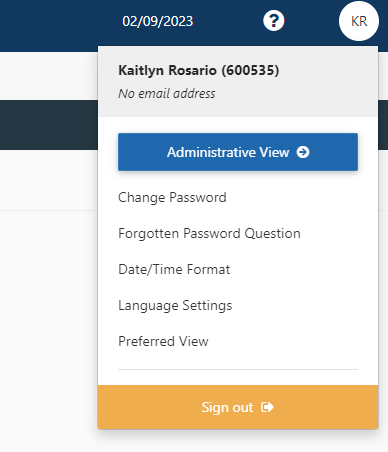 Then click on administrative view.
-
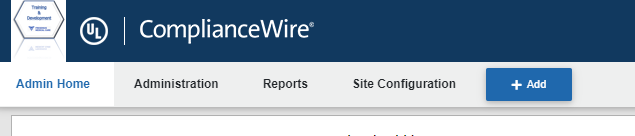 Click on Reports at the top left side of the page.
-
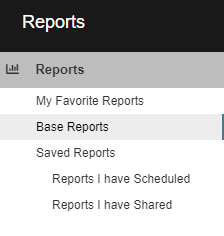
On the left hand side of the page, click on Base reports
-
 Find and double click on User Report.
-
 In the top right hand corner click edit to change the filters.
-
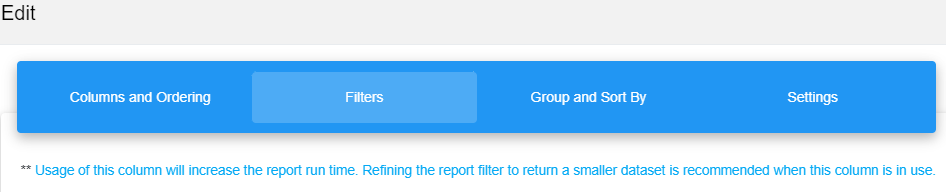 In the edit dialog box go to the Filters tab.
-
Change the Filter to Employee Status Is Temporary. Click Set Filter.

-
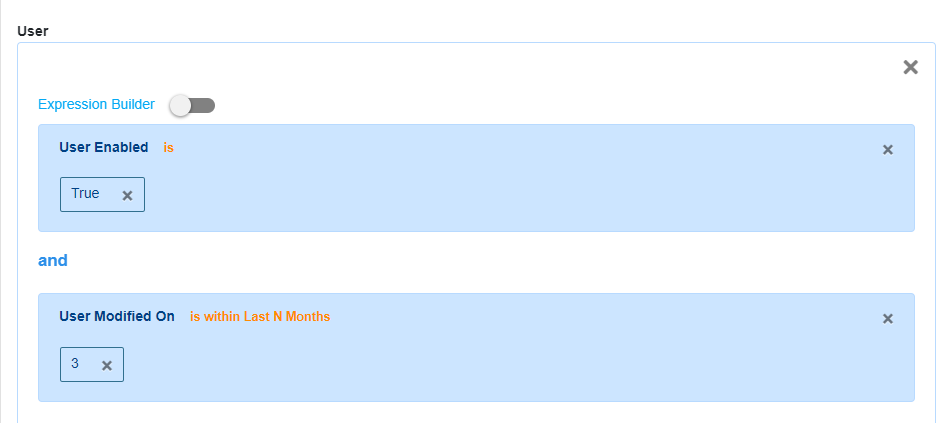
The user filters Enabled and User Modified on automatically appear.
-
Remove User Modified on.
-
Click Run Report without Saving.

-
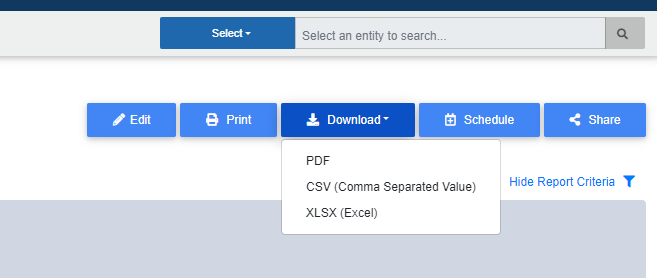
The report will generate with a warning saying Unsaved Changes exist. You can now download it as an Excel spreadsheet.
-
Open the Excel File and delete rows 1-15.
-
Select all of Column D and then Sort & Filter, Sort A-Z, click sort.
-
Select the numbers starting in 60…. That is all the YES Employees.
-
80…. Is Elwood
-
3….. Is Fresenius
-
Z…… is On-sites. HR and supervisors
-
Once you have selected all 60.. numbers, that will your total number of employees currently active at Fresenius Medical Care.

