




 12
12
Court Ordered Garnishments
SOP Number: YES00017
Effective Date: 12/31/2024
Revision Date: 12/31/2024
Owner: Operations
Review Frequency: [Quarterly]
Responsibilities
List the roles and their responsibilities for this procedure. Be specific about who is responsible for each part of the process.
-
Role 1: Recruiter
-
Role 2: Account Manager

Definitions
Provide definitions for any terms or acronyms used in this SOP that may not be commonly understood.

Procedure Steps
QUALIFYING:
-
Receive and sign for Court Ordered Garnishment when served.
-
Look up employee in Avionte to see if they are currently working.
-
Look for $25 check and give to Accounts Receivable.
-
On the front of the packet place a sticky note with the name of the client the employee is working at.
-
Input Garnishment information into spreadsheet Sharepoint -> HR -> PAYROLL -> Garnishments -> Current Garnishments.
ENTERING INITIAL DEDUCTION:
-
Once the employee is determined to qualify for a court ordered deduction, enter the deduction into the employee file.
-
Employee -> Employee Subtree -> Payroll -> Deduction
-
Create a “New Deduction”
-
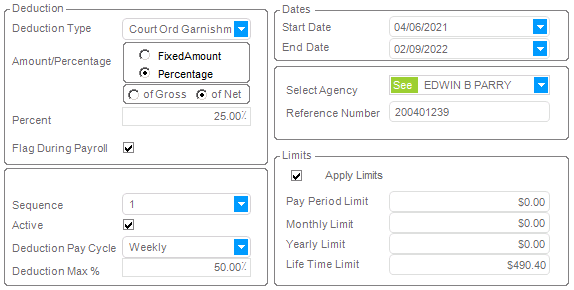 The Deduction should look like this:
-
Deduction Type: Court Ord Garnishment (1,2,3,etc depending on how many they have had in the past)
-
Amount/Percentage: Default to Percentage of Net at 25%. The majority of the court ordered garnishments that we receive, 25% is the amount that needs to be deducted.
-
Flag During Payroll: Yes
-
Sequence: 1 (or higher depending on how many garnishments they have or had in the past)
-
Active: Yes
-
Deduction Pay Cycle: Select the client they are working for pays on.
-
Deduction Max %: 50% WE ARE LEGALLY NOT ALLOWED TO TAKE MORE THAN 50%
-
Start Date: When the garnishment was received or activated
-
End Date: When the garnishment expires (most common is 1 year from issue)
-
Select Agency: The issuing agency listed on the top left of the garnishment
-
Reference Number: The case or claim number listed on the garnishment.
-
Apply Limits: YES
-
Pay Period Limit:
-
Monthly Limit:
-
Yearly Limit:
-
Lifetime Limit: The total amount owed on the garnishment.
-
Tab through a few times to save.
PROCESSING THE DEDUCTION
-
After processing payroll for the employee, pull up their check information in either the payroll tree from their payment batch, or from the employee file after processing (but NOT assigning check or DD numbers).
-
Open the CURRENT GARNISHMENTS spreadsheet.
-
Enter the employees check information into the calculator on the side, input amounts for all cells in yellow.
-
IF THE EMPLOYEE HAS ANY OTHER DEDUCTIONS (Child Support, Health Insurance, etc.) input the amount for the deduction into LINE 9 on the calculator to ensure that we account for that.
-
This will likely change the amount that should be deducted, and we will need to update the deduction.
-
In the employee’s sub tree, payroll -> Deduction. Find the Court Ordered Garnishment deduction.
-
Under APPLY LIMITS -> Pay Period Limit, enter the Total Amount to be withheld based on the spreadsheet calculation.
-
Process the payroll again in the payroll batch to ensure the deduction gets updated.
-
Ensure that the total in LINE 10 matches the amount deducted from an employee’s check in payroll. If the amounts match the deduction is complete and the interrogatories are ready to be filled out.
FILLING OUT INTERROGATORIES:
-
Look to see if the packet contains Answers for the Initial Pay Period as well as Subsequent Pay Periods. If the packet does NOT have Answers for the Initial Pay Period be sure to make copies of the Subsequent Pay Period form BEFORE filling it out.
-
Fill out the answer forms and use the Garnishment Table to help with the calculations of how much to deduct from the employee.
-
Once the Answers are filled out completely the following copies need to be made from the packet
-
Attorney
-
Writ
-
Answers
-
Defendant
-
Writ
-
Answers
-
Notice
-
Two copies of the Reply and Request
-
Employer
-
Blank copies of the Answers Subsequent Pay Period Form
-
These forms need to be mailed to Attorney and the Defendant and the blank copies of the Answers need to be placed with the packet for the next time the employee is paid.

Guidelines and Best Practices {OPTIONAL}
Offer any additional guidelines, tips, or best practices to help with successful execution of this SOP.

Approval and Revision History
|
Version |
Date |
Approved By |
Changes Made |
|
1.0 |
12/31/2024 |
IT , ML |
Initial Creation |

Contact Information
For questions or support related to this SOP, contact:
Role/Department: Operations
Email: [email protected]
Extension: 703

