




 13
13
Add user-Admin to TimeStation
SOP Number: YES00006
Effective Date: 12/30/2024
Revision Date: 12/30/2024
Owner: Operations
Review Frequency: Quarterly
Responsibilities
List the roles and their responsibilities for this procedure. Be specific about who is responsible for each part of the process.
-
Role 1: Recruiter
-
Role 2: Account Manager

Definitions
Provide definitions for any terms or acronyms used in this SOP that may not be commonly understood.

Procedure Steps
Add user/admin to time station
-
Log in at https://timestation.com
ADD EMPLOYEE
-
Click on employees from the navigation bar.

-
Click the “+Create Employee” button.

-
For internal YES employees, fill out:
-
Name
-
Department
-
Email
-
Permissions
-
Login to the Time Station App
-
Login to the Time Station Site
-
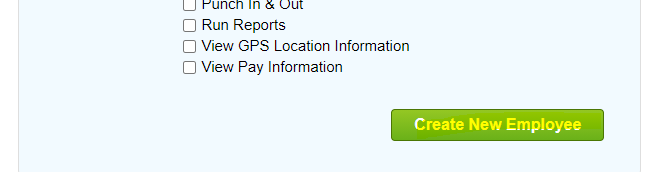
Punch in & out
-
For Employees at a clients building fill out:
-
Name
-
Department
-
Employee ID
-
4-Digit Pin
-
Click Create New Employee at the bottom.
ADD ADMIN
-
In the navigation bar click on Settings.

-
At the top of settings click on Administrators.

-
Click

-
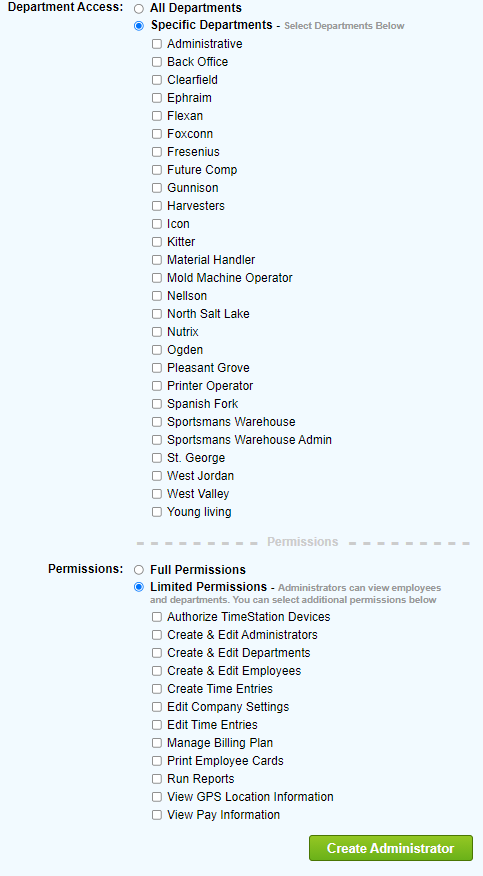
Fill out Admin name, and admins email, expand Department access and give access to needed branches.
-
Click on permission and give correct permissions to admin.
-
Click Create Administrator.

Guidelines and Best Practices {OPTIONAL}
Offer any additional guidelines, tips, or best practices to help with successful execution of this SOP.

Approval and Revision History
|
Version |
Date |
Approved By |
Changes Made |
|
1.0 |
12/30/2024 |
IT , ML |
Initial Creation |

Contact Information
For questions or support related to this SOP, contact:
Role/Department: Operations
Email: [email protected]
Extension: 703

