




 13
13
Timestation 101 training
SOP Number: YES00060
Effective Date: 11/27/2024
Revision Date: 11/27/2024
Owner: Operations
Review Frequency: [Quarterly]
Responsibilities
List the roles and their responsibilities for this procedure. Be specific about who is responsible for each part of the process.
-
Role 1: Recruiter
-
Role 2: Account Manager

Definitions
Provide definitions for any terms or acronyms used in this SOP that may not be commonly understood.

Procedure Steps
After logging in, you’ll reach your account home page. Here you can:
-
See the most recent punches.
-
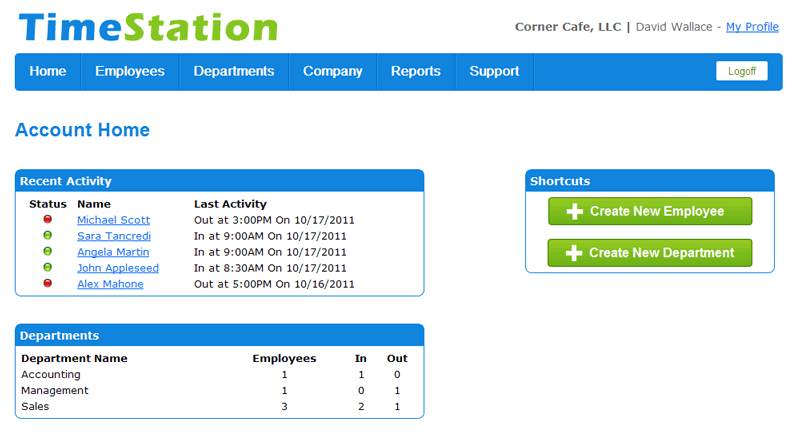 Shortcuts to add a new Employee or Create a New Department
Employees:
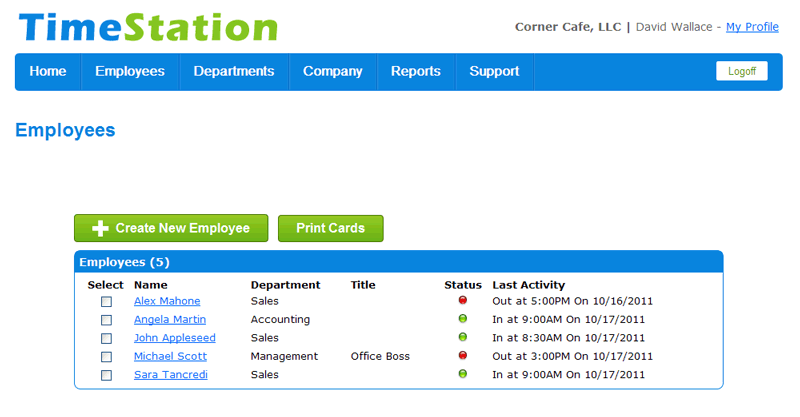 On the top ribbon, if you select employees. You’ll get to the screen below:
-
You can see the most recent punches, add new employees, print employee cards and edit employee profiles. (This shows any employee who is clocked in as green)
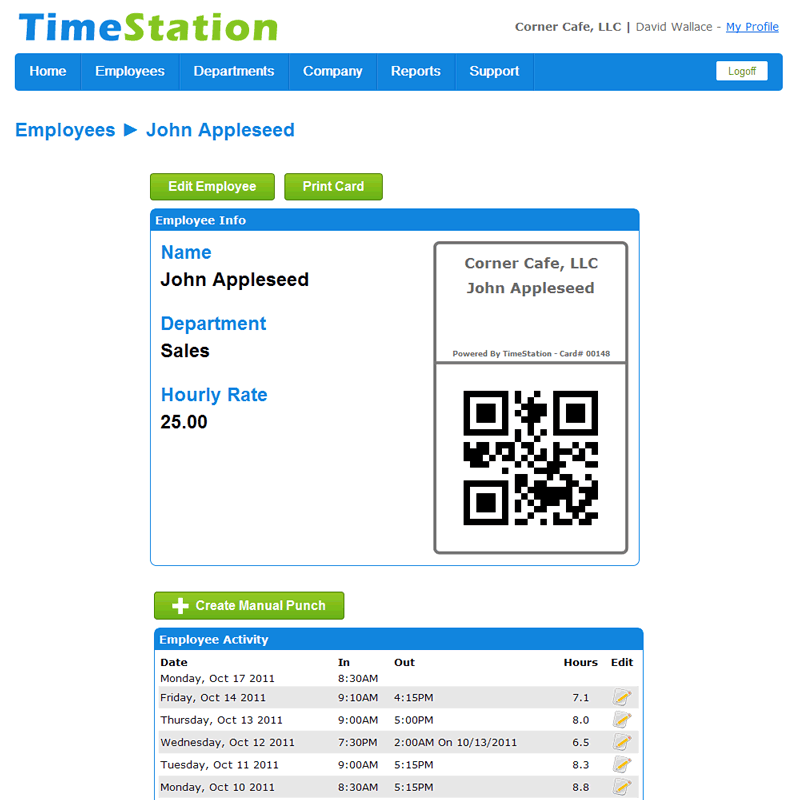
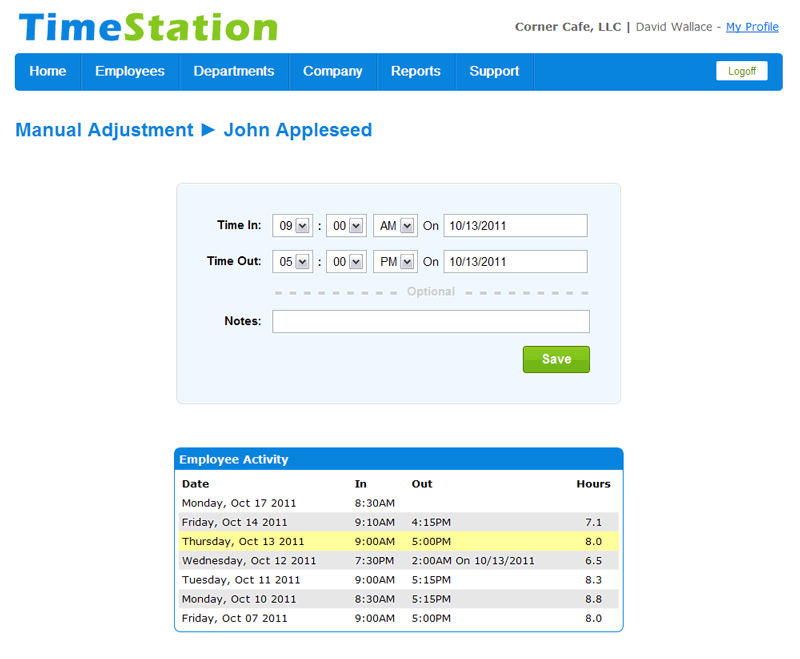
To edit an Employee our their punches, click on an individual’s name and you’ll be taken to the screen below:
-
You can create manual punches if the employee missed punches.
-
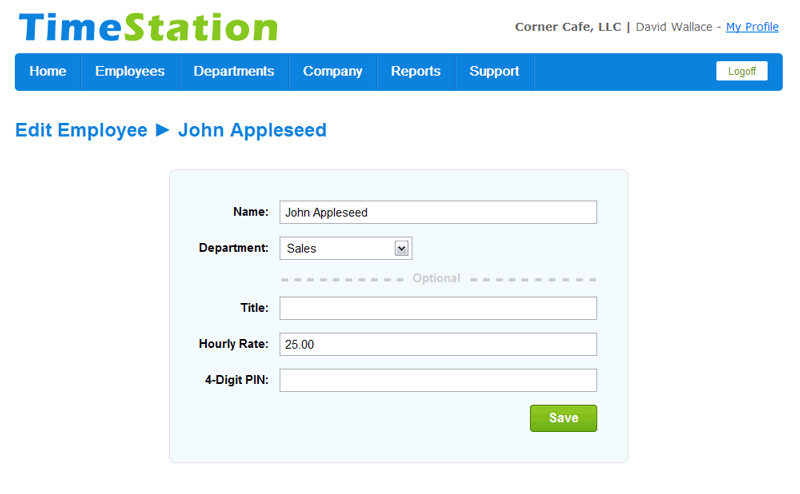
You can add their position personal information, wage, and create/manage the pin they use to Punch In/Out with.
-
You can also edit any of the punches the employee made by hitting the Pencil and Paper Icon, Edit. (Please be careful because you cannot see what the entry was once you edit it. Make a note if making a change on punches)
Reports:
-
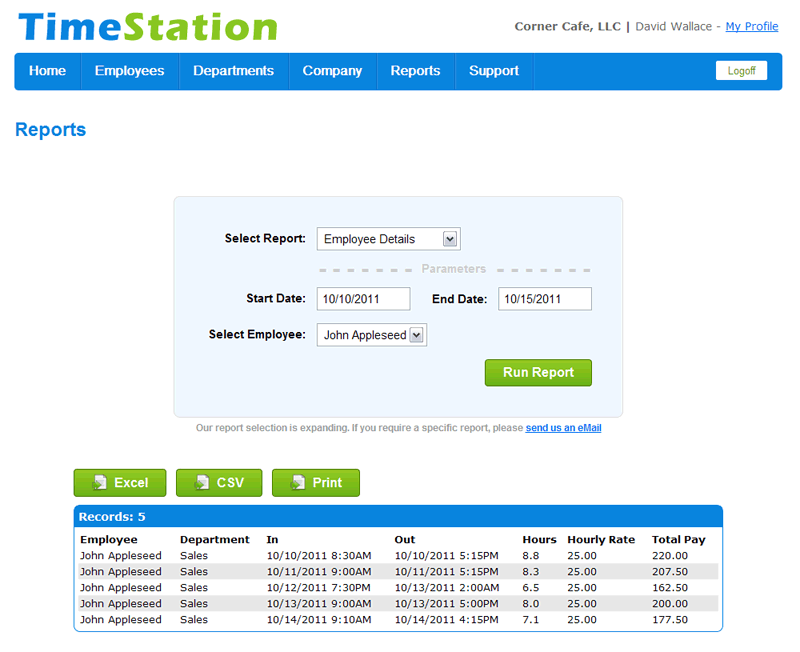
To run Reports, please hit Report in the top ribbon.
-
Select the report for the data needed (TimeStation is a straightforward report naming system)
-
Add your time frame.
-
Hit “Run Report” and choose how you would like to have it; Excel, CVS or Printed.

Guidelines and Best Practices {OPTIONAL}
Offer any additional guidelines, tips, or best practices to help with successful execution of this SOP.

Approval and Revision History
|
Version |
Date |
Approved By |
Changes Made |
|
1.0 |
11/27/2024 |
IT , ML |
Initial Creation |

Contact Information
For questions or support related to this SOP, contact:
Role/Department: Operations
Email: [email protected]
Extension: 703

