




 10
10
How to Create a Client Contact
SOP Number: YES00036
Effective Date: 2/19/2024
Revision Date: 2/19/2024
Owner: Operations
Review Frequency: {Quarterly}

Purpose
Briefly describe the purpose of this SOP. Explain why this procedure exists and what it aims to achieve.
Some SOPs will have this, some won’t. Will be listed as “Purpose” on old SOPs too.

Responsibilities
List the roles and their responsibilities for this procedure. Be specific about who is responsible for each part of the process.
-
Role 1: Recruiter
-
Role 2: Account Manager

Definitions
Provide definitions for any terms or acronyms used in this SOP that may not be commonly understood.

Procedure Steps How To Create A Client Contact
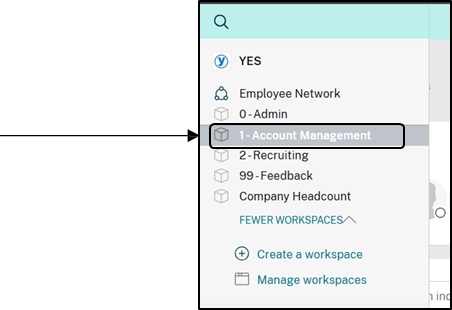
Step 1: Navigate to the “Account Management” workspace within Podio.
|
|
|
|
|
|
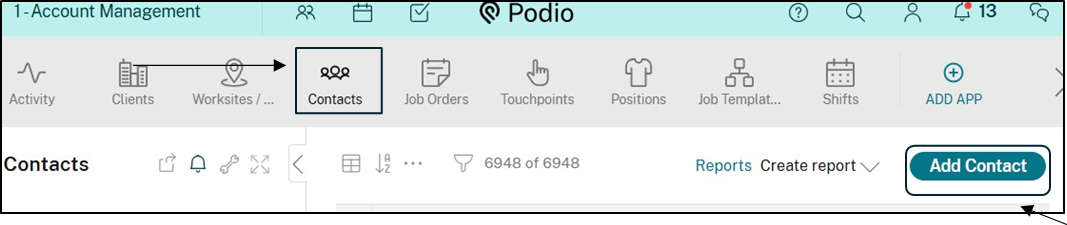
Step 2: Within the Account Management workspace, click on the “Contacts” app at the top of the screen.
Step 3: Click on the “Add Contacts” button on the right side of the screen.
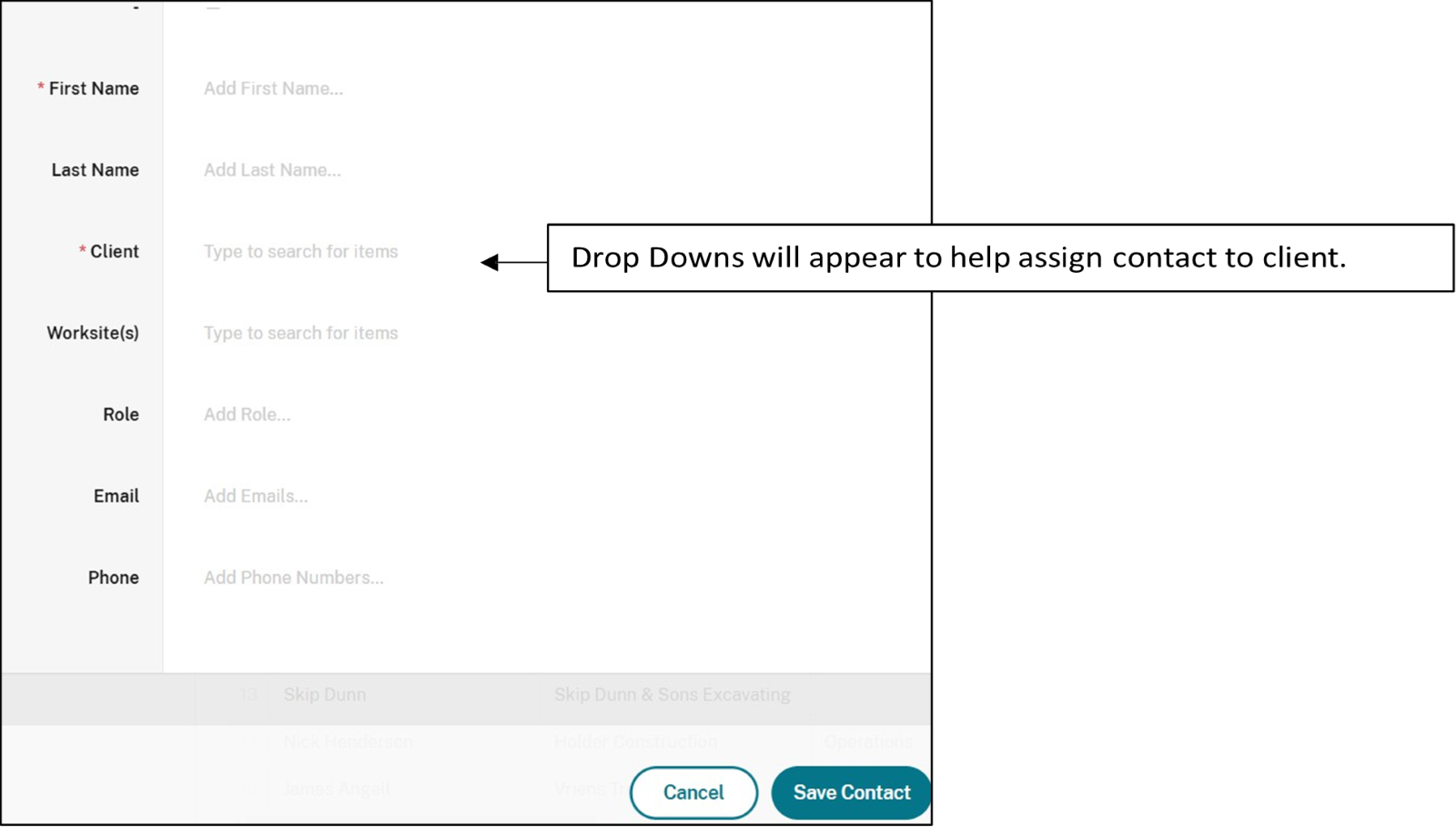
Step 4: Fill out the designated fields within the New Contact form, then click on the “Save Contact” Button.
Guidelines and Best Practices {OPTIONAL}
Offer any additional guidelines, tips, or best practices to help with successful execution of this SOP.

Approval and Revision History
|
Version |
Date |
Approved By |
Changes Made |
|
1.0 |
2/19/2024 |
IT , ML |
Initial Creation |

Contact Information
For questions or support related to this SOP, contact:
Role/Department: HR
Email: [email protected]
Extension: 117

