




 20
20
Signing into Peak Alarm App
SOP Number: YES00054
Effective Date: 2/19/2024
Revision Date: 2/19/2024
Owner: Operations
Review Frequency: [Quarterly]

Responsibilities
List the roles and their responsibilities for this procedure. Be specific about who is responsible for each part of the process.
-
Role 1: Recruiter
-
Role 2: Account Manager

Definitions
Provide definitions for any terms or acronyms used in this SOP that may not be commonly understood.
Signing into Peak Alarm app
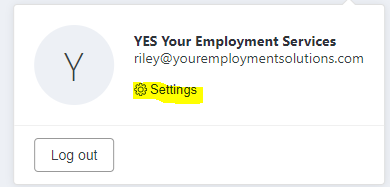
You should have received an email from peak alarm. Click login and use your email and the password provided to login. Once logged in click in the top right corner. Then click on Settings
-
Create a new password. Must be 10 characters long.
-
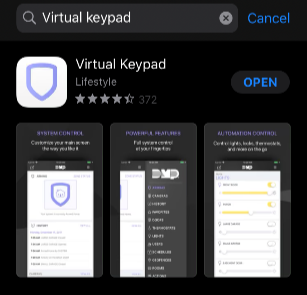
Once you have created your new password, in your mobile device app store search for Virtual Keypad and download it.
-
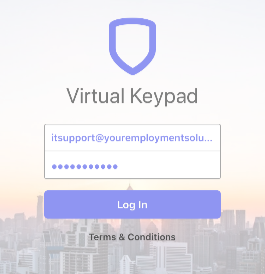
Once logged in type in your email address and the newly created password.
-
Agree to the terms and Conditions
-
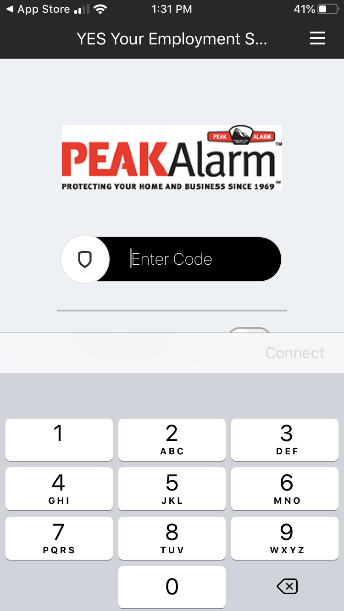
In the Code box you will enter the last 4 of your social. If this doesn’t work, check with IT.
-
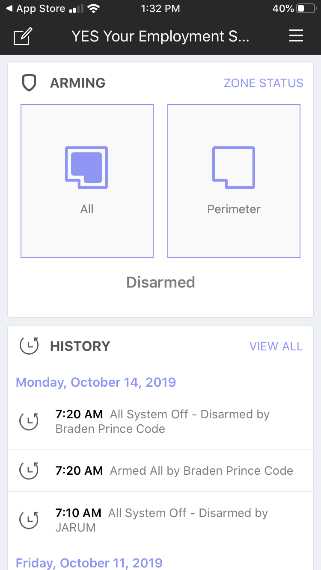
Once logged in, there is the “All” and “Perimeter” options.
-
“All” arms the door and hall sensors. This should be done if you are the last one to leave.
-
“Perimeter” only arms the door sensors. This should be used if you are working outside of normal business hours.
-
If you are the first to the office it will have one button that says “Disarm”
-
2 things to keep in mind.
-
The alarm auto sets at 9:30 at night.
-
The alarm should be armed and disarmed from outside the building because it is immediate.
Guidelines and Best Practices {OPTIONAL}
Offer any additional guidelines, tips, or best practices to help with successful execution of this SOP.
Approval and Revision History
|
Version |
Date |
Approved By |
Changes Made |
|
1.0 |
2/19/2024 |
IT , ML |
Initial Creation |


Contact Information
For questions or support related to this SOP, contact:
Role/Department: Operations
Email: [email protected]
Extension: 703

